First Person Boxing Game PC: How to Play on Roblox
Play the first person boxing game PC version through the Roblox client. Learn the reported keyboard controls, settings, avatar customization, and code redemption steps.
Published: First Person Boxing Wiki Editorial Team
Table of Contents
First Person Boxing on PC: What You Are Actually Playing
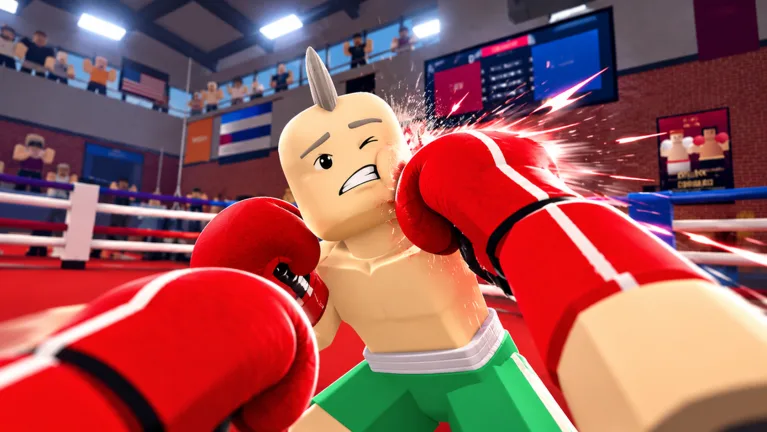
Stepping into the ring from a desktop is one of the cleanest ways to enjoy first person boxing game PC play, because First Person Boxing runs inside the Roblox client instead of shipping as a separate download. Developed by Can You Box?, the experience puts the camera inside your fighter's head on PC, mobile, and console, with up to 16 players in a server. There is no confirmed Steam, PlayStation, Xbox, or Nintendo Switch version, so any page offering a standalone PC installer for this title is not describing the real game.
On a desktop, that first-person camera is what separates the experience from third-person fighting games: you read your opponent's gloves instead of watching an avatar from behind. The trade-off is that distance, guard height, and stamina all have to be judged from inside the head slot, which is why the control list and settings below matter more here than on any other device.
Open the official experience: Launch First Person Boxing from its Roblox game page in a browser or through the Roblox desktop app.
Learn the basics against AI: Use the tutorial and AI practice matches to drill punch timing, guard, and head movement before you queue into live PvP bouts.
Tune your setup first: Set lock-on, field of view, and sensitivity before a real match so you are not digging through menus between rounds.
PC Keyboard and Mouse Controls for First Person Boxing
The desktop version leans on a compact keyboard and mouse layout rather than a controller. Creator coverage and player guides report the defaults below, and pressing H in game brings up the full control list if something does not match what you see.
Action
Reported Input
What It Does
Move
WASD
Footwork in and out of punching range
Bob and Weave
Space + WASD
Moves your head off the centre line to slip punches
Guard / Block
F
Raises your guard to cover your head and torso
Lock On
Q
Keeps the camera centred on one opponent
Overhand
X
Throws a heavy overhand punch
Extend Straight Punches
Hold Click
Keeps straight punches extended for steady pressure
Swap Gloves
Mouse Wheel
Cycles glove options and changes guard orientation
Gloves Menu
G
Opens the glove selection menu
Customization
K
Opens the avatar customization menu
Join a Match
J
Queues you into a fight
Full Control List
H
Shows every keybind in game
Shop and Codes
B (or the Shop button on the left)
Opens the shop where codes are redeemed
If a key appears to do nothing, check H first. Keyboard and mouse are enough to play on PC, and no controller is required.
Settings and Fighter Customization on PC
Because the game runs inside the Roblox client rather than as a heavy standalone simulation, camera clarity matters more than chasing high-end hardware. Creator coverage recommends leaving lock-on enabled, raising the field of view to 90–100, adjusting mouse or glove sensitivity, and turning the "head moves with punches" option off so the camera stays steady while you trade punches.
Recommended Settings
Lock-on on, FOV between 90 and 100, sensitivity tuned to your mouse or gloves, and "head moves with punches" disabled. These are the settings the creator highlights for keeping an opponent readable in first person.
Customization Menu (K)
The customization menu covers body type (lean, athletic, or muscular), head size, weight, and height. The creator's summary: smaller builds move faster but hit softer, taller builds hit harder but move slower, and a lean build with a narrow head leaves opponents less to hit.
Those trade-offs are the main reason PC players spend time in the customization menu before a session. A lean, narrow-headed fighter is harder to catch cleanly, while a taller build trades mobility for heavier punches.
Styles, Spins, and Codes on the PC Version
Fighting styles come from the styles menu using Style Spins and Lucky Spins. Reported rarities include Legendary and Mythic, spins can also be purchased with coins earned by winning matches, and the styles named in creator coverage so far are Peekaboo, which the creator calls the best option, and Philly Shell. Treat any other style names you see ranked online as unverified.
Codes are the free route to extra spins. Once you are in the experience, press B or click the Shop button on the left side of the screen, type the code into the text box, and press Redeem. Reported working codes are LUCK1 (5 Style Spins), UPPERCUT (1 Lucky Spin), and FPSBOXING2 (3 Style Spins plus 1,000 Coins). FPSBOXING1 (3 Style Spins) still appears on older lists, but reports conflict about whether it has expired, so test it first if you want to use it.
Press H in game to confirm the current keybind list before you change anything.
Turn lock-on on and set FOV to 90–100 so incoming hooks stay in view.
Disable "head moves with punches" if the camera feels unstable during exchanges.
Open the customization menu with K and test a lean build with a narrow head.
Redeem the reported codes through the Shop: LUCK1 (5 Style Spins), UPPERCUT (1 Lucky Spin), and FPSBOXING2 (3 Style Spins + 1,000 Coins).
Warning
There is no separate PC download for First Person Boxing. Ignore sites offering a standalone installer, a modded client, or free Robux for this experience, and only redeem codes inside the in-game Shop.
Frequently Asked Questions
Is there a first person boxing game PC version outside Roblox?
No confirmed standalone version exists. First Person Boxing is a Roblox experience, so PC players launch it through the Roblox client or a browser on the official game page, the same build that mobile and console players join.
Do I need a controller to play First Person Boxing on PC?
No. Keyboard and mouse are the reported default on desktop: WASD to move, Space + WASD to bob and weave, F to guard, Q to lock on, X for the overhand, and hold click to extend straight punches. Press H for the complete list.
Can I customize my fighter on the PC version?
Yes. Press K to open the customization menu and adjust body type, head size, weight, and height. According to the creator, smaller builds are faster but deal less damage, taller builds hit harder but move slower, and a lean build with a narrow head presents a smaller target.
How do I redeem codes on PC?
Press B, or click the Shop button on the left side of the screen, and the shop window opens with the code box. Enter a reported code such as LUCK1 (5 Style Spins) or UPPERCUT (1 Lucky Spin) and press Redeem to send the spins to the styles menu.